How to use the kaomoji generator
- Build your face. Use the arrows under Center, Eyes, Sides or Hands. Each control has five choices. The preview changes immediately.
- Keep the good bits. Lock any part you like, then press Spin All to randomize the remaining parts. The arrows still work on locked parts, so you can make a deliberate adjustment.
- Copy and paste. Press Copy Kaomoji, then paste the text into your message, profile, notes or code comment. Reset restores the starting face and clears every lock.
There are 625 possible combinations: five centers × five eye pairs × five side pairs × five hand pairs. A random spin can land on a combination you have already seen. It is a playful text-face maker, so some results will look more expressive than others.
What is a kaomoji?
A kaomoji is a text emoticon made from characters arranged to suggest a face, expression or gesture. For example, (◕‿◕) reads as a friendly face, while (T_T) often suggests crying. Unlike a sideways smiley such as :-), a kaomoji usually reads upright.
People sometimes call these Japanese emoticons or Japanese text faces. They are different from pictorial emoji: a kaomoji is a sequence of text characters, whereas an emoji is rendered using the app or device’s emoji presentation. Copying a kaomoji copies the characters, not an image.
That makes text faces useful in places that accept ordinary text. Try one in a chat reply, a README, a friendly project note or a social bio. Check the destination first: fonts, available space and the surrounding tone all affect whether a face works well.
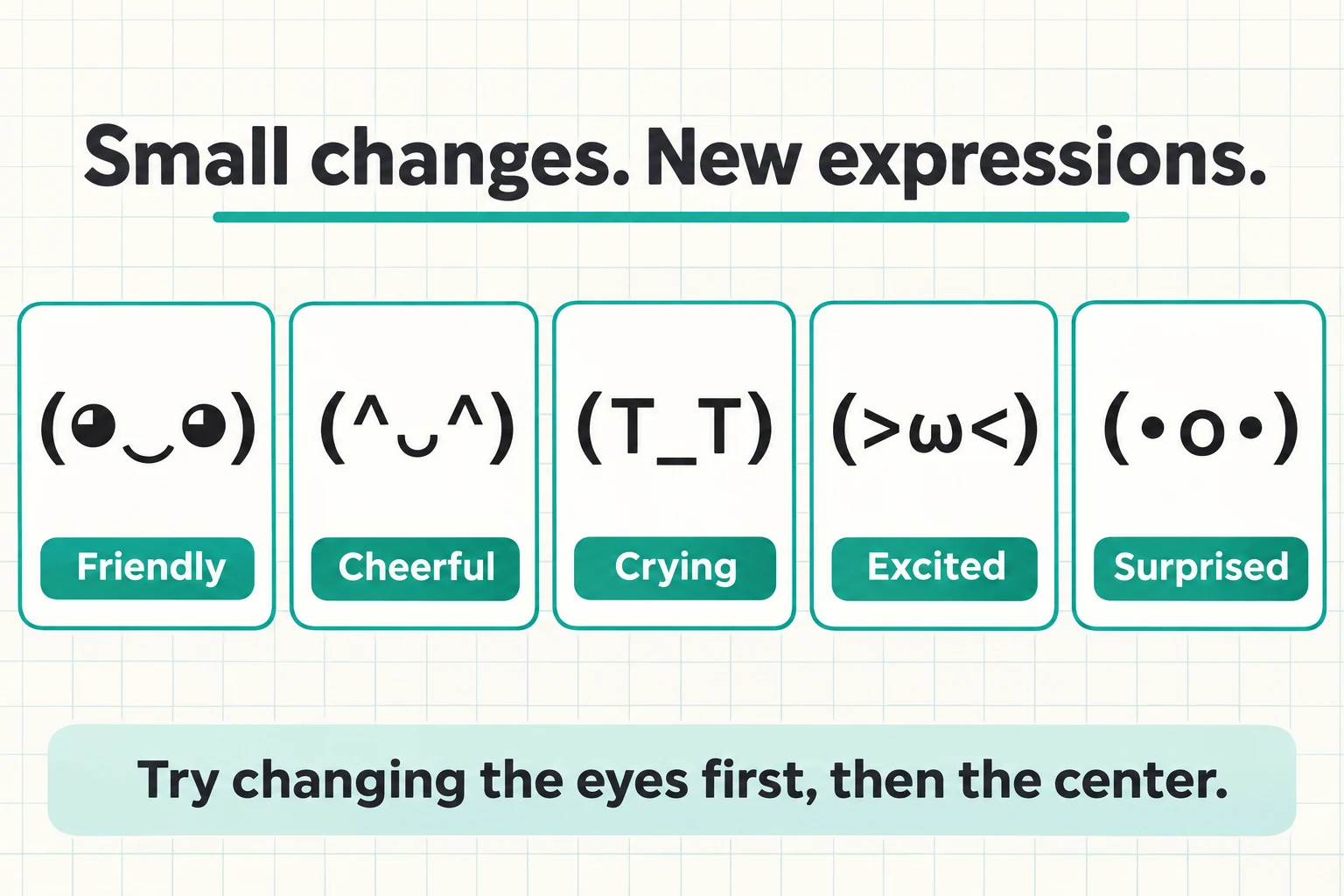
Kaomoji examples to copy and customize
Start with a familiar expression, then change a single part. Keeping the sides fixed makes the effect of different eyes easier to see. These interpretations are suggestions; the same face can read differently depending on the conversation.
| Text face | Possible expression | Try changing |
|---|---|---|
(◕‿◕) | Friendly | The hands, for a greeting |
(^ᴗ^) | Cheerful | The sides, for a different outline |
(T_T) | Crying | The center, for a softer expression |
(>ω<) | Excited | The hands, for more energy |
(•o•) | Surprised | The eyes, for a different reaction |
Prefer choosing an existing expression? Browse PSD Dude’s kaomoji collection for ready-made faces to copy and paste. It is useful when you know the mood you want and would rather browse examples than assemble a new face.
The four parts of a text face
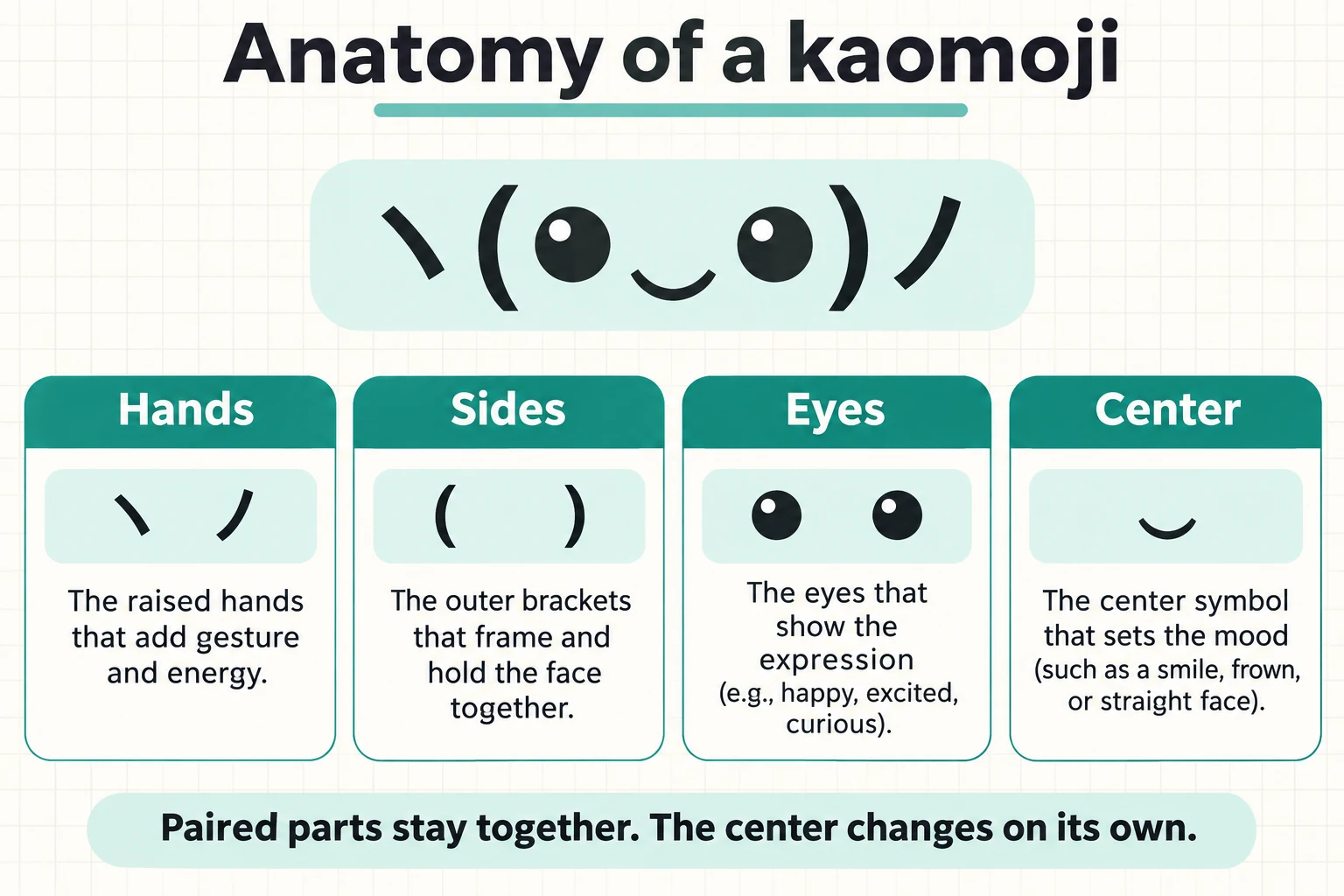
This maker uses a small set of interchangeable pieces. The center is a mouth or nose-like feature, such as ω or ‿. The eyes come as a pair. The sides frame the face and can suggest a head or ears. The hands sit outside the face and add a gesture.
In ヽ(◕‿◕)ノ, the hands are ヽ and ノ, the sides are parentheses, the eyes are two ◕ characters and the center is ‿. Pairing the outer pieces avoids accidentally combining an opening bracket with an unrelated closing bracket.
This is deliberately a compact generator. It does not try to represent every kaomoji style, and it does not infer an emotion from your text. The limited palette makes it easier to understand each choice and to learn how the code works.
How to build a kaomoji maker with JavaScript
The core idea is string assembly. Keep the available pieces in arrays, remember the selected index for each part, then join the selected characters in the right order. PHP only embeds the interface in WordPress; JavaScript handles the interaction in the browser.
1. Store paired parts as arrays
Represent each matched pair with a two-item array: left first, right second. The empty hand pair means “no hands.” The generator uses the following data; you can replace the symbols or extend the arrays for your own project.
const parts = {
  center: ['ω', '‿', 'ᴗ', '_', 'o'],
  eyes: [['•', '•'], ['◕', '◕'], ['^', '^'], ['T', 'T'], ['>', '<']],
  sides: [['(', ')'], ['[', ']'], ['{', '}'], ['ʕ', 'ʔ'], ['〔', '〕']],
  hands: [['', ''], ['ヽ', 'ノ'], ['٩', '۶'], ['\', '/'], ['づ', 'づ']]
};
const initial = { center: 1, eyes: 1, sides: 0, hands: 0 };
let state = { ...initial };
Indices start at zero, so index 1 selects the second entry. Here it selects the smiling center and round eyes. This explicit state is easier to reset and inspect than trying to recover the selected pieces from the preview text.
2. Assemble the selected characters
Read the selected pairs, then place them around the center. The output is one ordinary JavaScript string. Use an input’s value property or an element’s textContent to display it, so characters such as angle brackets remain text.
function compose() {
  const center = parts.center[state.center];
  const [leftEye, rightEye] = parts.eyes[state.eyes];
  const [leftSide, rightSide] = parts.sides[state.sides];
  const [leftHand, rightHand] = parts.hands[state.hands];
  return leftHand + leftSide + leftEye + center
    + rightEye + rightSide + rightHand;
}
// With the initial state, compose() returns '(◕‿◕)'.
There is no need to split the finished face back into individual characters. Some Unicode symbols can involve multiple code points, so keeping the original strings intact also makes the design easier to extend later.
3. Cycle choices and respect locks
The remainder operator wraps a control back to its first choice after the last one. Adding the array length before taking the remainder also handles the previous button at index zero. A lock is a separate boolean; it affects randomization rather than preventing manual changes.
const key = 'eyes';
const step = 1; // Use -1 for the previous button.
state[key] = (state[key] + step + parts[key].length)
  % parts[key].length;

const locks = { center: false, eyes: false, sides: false, hands: false };
const target = { ...state };
Object.keys(parts).forEach(key => {
  if (!locks[key]) {
    target[key] = Math.floor(Math.random() * parts[key].length);
  }
});
The live tool chooses the final target once, then animates toward it. Each unlocked reel stops a little later than the previous one. Controls pause during that brief transition to avoid overlapping spins. Visitors who prefer reduced motion get the final result immediately.
Keep rapidly changing animation text out of an announcing live region. Announce the final face once instead. Give arrow buttons descriptive names such as “Next eyes,” and expose each lock’s state with aria-pressed.
4. Copy plain text with a fallback
Call the clipboard method from the visitor’s button click. The Clipboard API’s writeText() method requires a secure context, normally HTTPS, and can reject a request. Only show a copied message after its promise resolves.
async function copyFace(result, status) {
  try {
    if (!window.isSecureContext || !navigator.clipboard?.writeText) {
      throw new Error('Clipboard unavailable');
    }
    await navigator.clipboard.writeText(result.value);
    status.textContent = 'Copied ' + result.value;
  } catch (_) {
    result.focus();
    result.select();
    result.setSelectionRange(0, result.value.length);
    status.textContent = 'Text selected. Use your device’s copy command.';
  }
}
The result should stay selectable even when automatic copying fails. That gives desktop visitors a keyboard option and mobile visitors a touch-selection option. A successful copy preserves the characters; the destination app still controls how they look.
For a small text tool, a library or server request would add complexity without helping the interaction. This version works locally in the browser and does not save your generated faces. If you enjoy browser-based typography experiments, try the Wavy Text Generator next.
Extending the generator without breaking the pairs
Add a new eye style as a complete pair rather than adding its left and right characters to separate lists. The same rule applies to sides and hands. A wink, for example, can be an asymmetric eye pair: both positions belong to one choice even though they use different symbols. Test the finished face with every center before adding it to a public palette.
If you expand the choices, update the visible option counters and combination count too. Multiply the four array lengths to calculate the total; it is 625 only while every array contains five entries. The live widget’s labels intentionally match this compact palette. Keep the underlying character strings unchanged when displaying them, and save the snippet as UTF-8 so the source does not lose symbols.
You can also offer curated examples alongside random combinations. A curated face shows someone a useful starting point, while the independent controls help them discover why it works. Avoid assigning a fixed emotional meaning to every random output: context and personal interpretation matter, and a funny combination may simply be a funny combination.
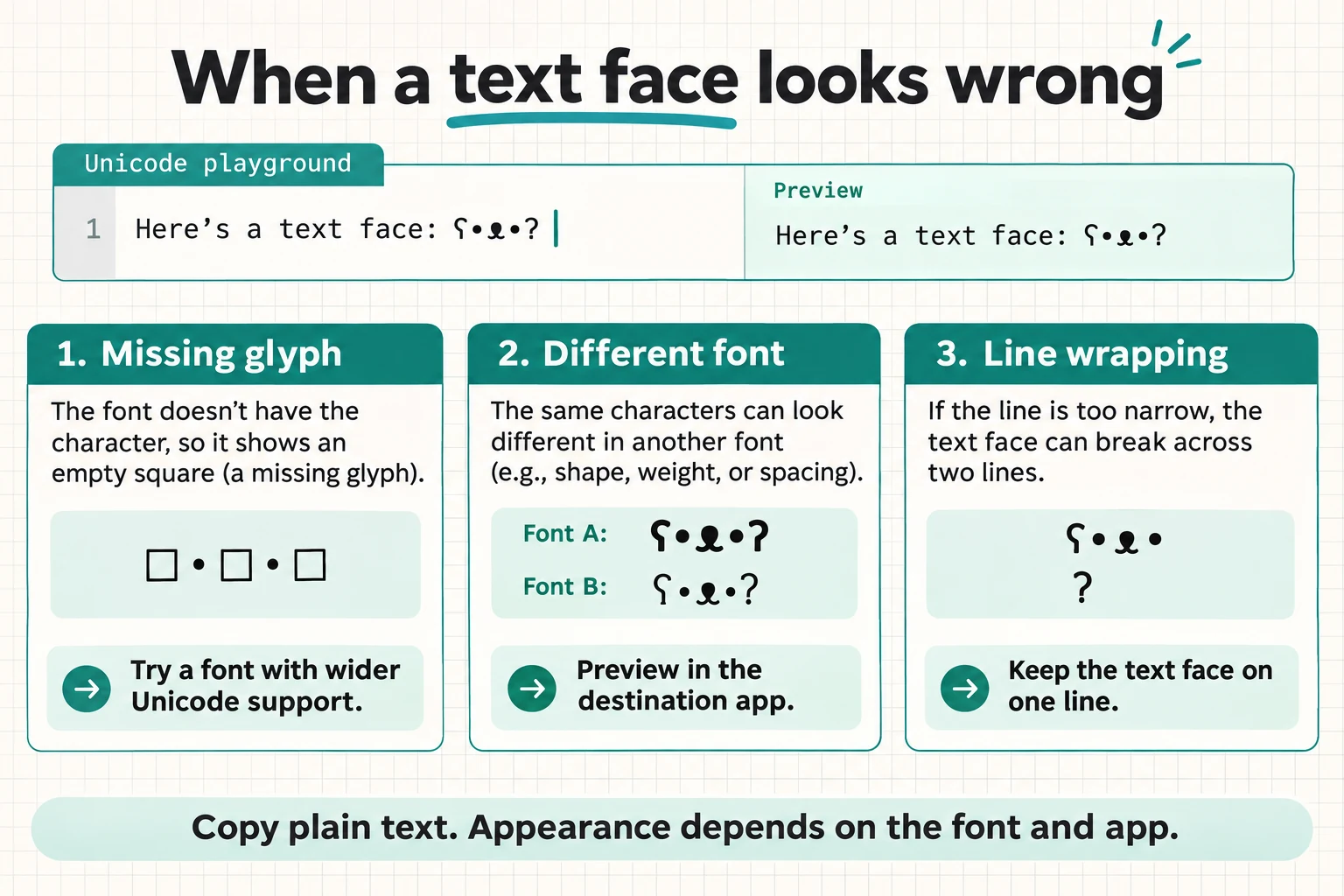
Why does my kaomoji look different after pasting?
A copied text face can look slightly different in another app because the app uses a different font. An empty square usually means the selected font cannot display a character. Try a font with wider Unicode coverage, or choose simpler symbols such as parentheses and carets.
Keep the face together on one line. Narrow profile fields can wrap a long face, and some editors may change spacing or punctuation. Paste into a plain-text field first when troubleshooting. On your own website, a container with white-space: nowrap can prevent an unwanted line break; allow overflow or scale the type for small screens.
Frequently asked questions
Is this kaomoji generator free?
Yes. You can mix the parts and copy the resulting text face without signing in or downloading anything.
Can I make a custom kaomoji?
Yes. Choose a combination of the five options in each of the four controls. For symbols outside this palette, copy a generated face into your text editor and adjust it manually.
Does Spin All change locked parts?
No. Spin All keeps locked parts and randomizes the others. The arrow buttons still let you deliberately change a locked part. Reset clears the locks and restores the starting face.
Can I use the result in Discord, a bio or a README?
You can paste it into fields that accept these text characters. Preview the result in the destination, since fonts, field limits and line wrapping vary.
Is this ASCII art?
It is text art, but most faces here use characters outside ASCII. “Unicode text emoticon” is a more precise description of examples such as (◕‿◕).
Why did the same result appear twice?
Each unlocked part is selected independently. Random selection allows repeats, including the face already on screen. Use the arrows when you want to guarantee that a particular part changes